
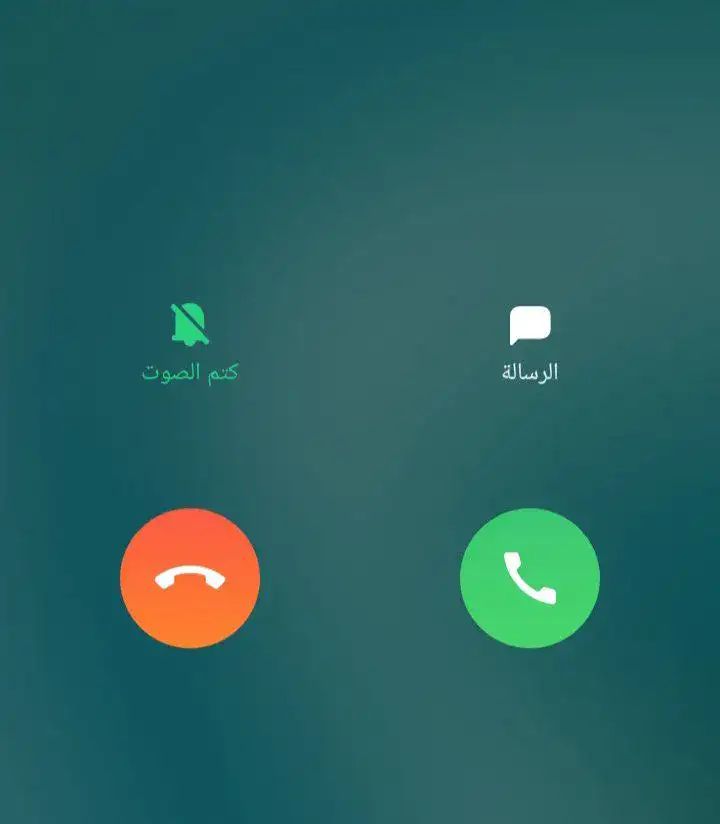
Many people want to know the reasons and solutions for incoming calls not showing but phone is ringing in realme, which we will discuss.
Why are incoming calls not showing on screen but phone is ringing?
Common reasons for incoming calls not showing but phone is ringing in realme include not granting the necessary permissions to the phone app, turning off incoming call notifications, physical damage to the phone from a fall or exposure to liquids, mobile system issues, using a third-party calling app instead of the default phone app, or the calling party using a number-hiding feature.
Note: After trying each step below, test calling your phone to ensure the issue is resolved.
How do I make incoming calls show up on my screen?
1. Restart the Phone
Usually, a simple restart resolves many phone issues caused by minor system glitches. Press and hold the power button, then select restart.
2. Clear Phone App Data and Cache
Delete the cache for the phone app by going to “Settings” > “Apps” > choose “Phone app” > “Storage usage” > tap “Clear cache.” If not successful, reset the app by pressing “Clear data.” Repeat the process for the “Contact Management” app.
Note: Clearing data will delete call logs.
3. Update the Phone System
Updates often come with fixes for software issues causing phone problems. Go to “Settings” > “Software Update,” check for available updates, and install them.
4. Reset All Settings
If meddling with phone settings caused the issue, reset all settings without losing data. Navigate to “Settings” > “General Management” > “Reset” > “Reset settings”.
Note: Avoid the “Factory data reset” option, as it will erase all phone contents.
5. Use the Default Phone App
Installing and configuring third-party calling apps may interfere with caller ID display. Delete any downloaded apps or set the default phone app by going to “Settings” > “Apps” > “Default apps” > “Phone”.
Note: Avoid downloading apps from unknown sources and ensure installation from the Google Play Store.
6. Check call notifications
Verify that call notifications are active. Go to “Settings” > “Apps” > choose the “Phone app” > “Notifications.” Ensure both “Allow Notifications” and “Incoming calls” are enabled. Also, check for any scheduled quiet hours.
7. Disable Do Not Disturb
The Do Not Disturb mode might be muting calls and notifications. Go to “Settings” > “Do Not Disturb” and make sure it is turned off.
After performing these steps, test your phone by making a call to confirm if the issue is resolved.
8. Granting Necessary Permissions to the Phone Application
When using any application for the first time, it may request a set of permissions from the user to perform its functions effectively.
Failure to grant permissions for contacts and phone when initially prompted can result in incoming calls not showing but phone is ringing in realme, as these are considered essential permissions for notifications.
To resolve this, ensure you grant these permissions by navigating to “Settings” > “Apps” > “App Management” > “Phone app” > “Permissions.” Make sure to enable the “Contacts” option and repeat for the “Phone” app.
9. Removing Call Background
Downloading video ringtone themes from the theme store to display during calls might cause a delay in the appearance of caller data or even realme incoming call not showing.
Resolve this by removing the downloaded themes and using the default background for calls.
10. Updating the Phone Application
Older versions of applications can lead to issues, so try updating the phone app if your device allows it.
Check for updates by going to “Play Store” > “Tap on your profile icon at the top of the screen” > “App and device management” > “Available updates” > “Select Phone app” > “Tap on Update”.
11. Use Google’s Phone Application
While I recommended using the default calling app earlier, Google’s Phone app is an exception.
It’s developed by Google and works on most devices, Download it from the store and use it if the default phone app on your device doesn’t resolve the issue.
12. Avoid Participating in the Phone App’s Google Beta Program
Enrolling in the beta program allows you to try the new update before its official release, but it might introduce issues as it’s an unstable version.
To exit the program, go to “Play Store” > “Tap on your profile picture” > “Settings” > “General settings” > “Account and device preferences” > “Leave the testing program” > “Leave.” Note that this will exit all joined beta programs.
13. Force Stop the Phone App
Forcing the app to stop may help fix minor glitches causing the problem. Navigate to “Settings” > “Apps” > “App Management” > “Phone app” > “Force Stop.
14. Allow Phone App to Appear Over Other Apps
Not allowing the app to appear over other apps during use might cause the issue. To solve this, go to “Settings” > “App Management” > “Display over other apps” > Find the Phone app and enable the toggle switch next to it.
15. Disable Call Blocking
Accidentally blocking a number might lead to incoming calls not showing but phone is ringing in realme.
To unblock a specific number, open the “Phone app” > Tap on the three dots > Press the “X” next to the number you want to unblock.
To unblock incoming calls or unknown numbers, disable “Block all incoming calls” and “Block unknown callers.
16. Reset App Preferences
This action resets app settings to default without deleting data, potentially resolving any issues.
To do this, go to “Settings” > “Apps” > Tap on the three dots > “Reset app preferences” > “Reset Apps
17. Reboot in Safe Mode
Some downloaded apps may cause problems, such as incoming call not showing on screen realme. Restarting in safe mode can help check this.
To enter safe mode, press and hold the power button until the power options menu appears, then long-press on “Power off” until the safe mode window appears, and tap “OK”.
If the problem doesn’t occur in safe mode, the cause might be an app. Restart your phone and go to “Settings” > “Apps.”
Remove recently downloaded apps one by one, restarting your phone after each removal, and check if it solves the issue.
18. Factory Reset
The most potent solution for the incoming calls not showing but phone is ringing in realme is a factory reset, which resets the device to its original settings, deleting all data and apps.
To perform a factory reset, go to “Settings” > “System Settings” > “Backup and Reset” > “Factory Reset” > “Erase All Data.”
Alternatively, type “Factory Reset” in the search box in the Settings app.
Note: Avoid data loss by having a backup, and it’s preferable to create it before the issue occurs to prevent reinstalling anything causing the problem.
19. Visit a Service Center
If the issue persists after trying the above solutions, there may be a fault or damage to the device. The best solution is to visit an authorized Realme phone repair center.
Note: Settings names and locations may vary depending on the device version.
20. Buying a new phone
If the problem recurs even after visiting the service center, it may be time to buy a new phone. Discover the latest phones of this year at discounted prices.
Note:“I may earn a commission if you visit or make a purchase through the links provided.”
Sources
- SHAREEF, TASHREEF. “Android Phone Not Receiving Calls? Here Are 9 Fixes to Try .” Make use of. 24 Jan. 2023. http://www.makeuseof.com/android-phone-not-receiving-calls/. Accessed 4 July 2023.
- McLaughlin, Molly. “How To Fix an Android That Can’t Make or Receive Calls .” Lifewire. 10 Feb. 2023. http://www.lifewire.com/android-phone-cant-make-or-receive-calls-4586351. Accessed 4 July 2023.
- Makvana, Mahesh. “How to Fix an Android Phone Not Receiving Calls .” Online tech tips. 13 Oct. 2022. http://www.online-tech-tips.com/smartphones/how-to-fix-an-android-phone-not-receiving-calls/. Accessed 4 July 2023.
 زويل تيك
أخبرنا برأيك