
Similar to Android users, some iPhone owners may want to understand the reason behind and find a solution to the issue of their iPhones automatically turning silent. This is what we will discuss.
Causes of the problem
This issue may occur due to accidental changes in sound or phone settings, such as enabling Do Not Disturb mode or the back press feature. It could also result from phone system issues or malfunctioning volume control buttons, among other reasons.
Ways to fix the phone turns silent automatically on iPhone
1. Restart the phone
Restarting your phone often resolves most software-related issues that could be causing the problem. Try restarting your phone. If that doesn’t work, proceed to the following solutions.
2. Remove the phone case
Using a cheap case from an unknown company or a tight silicone case might be causing the issue. The solution is to remove the case and purchase a new one from a reputable company with a good reputation.
3. Disconnect Bluetooth devices connected to the phone
A connected Bluetooth device, like headphones, may prevent you from hearing incoming call rings if not in use at the time of the call. Make sure to disconnect any Bluetooth device from your phone when not in use.
4. Adjust iPhone sound settings
Go to “Settings” > “Sounds” > Under “Ringtone and Alerts Volume,” slide the bar to increase the volume.
If the switch next to the “Change with Buttons” option is green, you can turn it off to disable controlling the ringtone volume with the buttons.
This is useful if the issue is caused by accidentally pressing the volume buttons.
5. Use the ringtones that came with the phone
Downloading a ringtone and setting it for your phone or a specific contact instead of the default tone might result in silent ringing if the downloaded tone is corrupted or deleted.
Make sure to use one of the default and loud ringtones. Go to “Settings” > “Sounds” > “Ringtone” > Choose a new loud ringtone.
If you’re missing calls from a specific contact, open the “Contacts app” > Tap on the contact > “Edit” > “Ringtone” and choose a different ringtone.
6. Turn off Do Not Disturb mode
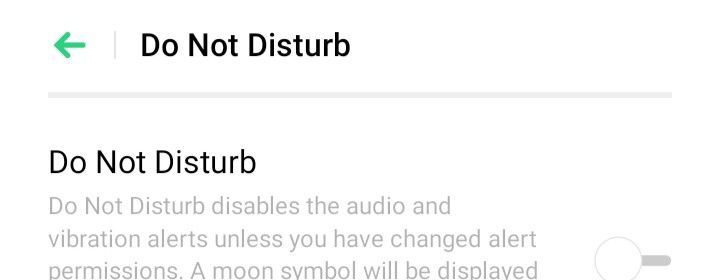
You can use the “Do Not Disturb” feature to silence calls, alerts, and notifications when your device is locked. You can also set a schedule for “Do Not Disturb” and allow incoming calls from specific contacts during that time.
So, enabling this mode might be the reason your iPhone is turning silent automatically. To turn it off, go to “Settings” > “Do Not Disturb.” If you find the switch next to “Do Not Disturb” is green, toggle it off.
Also, disable the option to automatically turn off “Do Not Disturb” scheduling. Then, in the “Do Not Disturb While Driving” section, tap on “Activate” and choose “Manually.” This prevents “Do Not Disturb” from turning on automatically, allowing you to control it manually.
7. Disable bedtime mode
Through this mode, you can set a bedtime and wake-up time to receive reminders for bedtime and alarms for waking up. You can also have it set automatically based on specific times.
Using this mode activates “Do Not Disturb” during sleep, which may mute your phone. To disable this, open the “Clock app” > at the bottom of the screen, choose “Bedtime” > turn off the switch.
If you need to turn it on, you can use the “Options” at the top of the screen and disable the “Do Not Disturb During Bedtime” option.
8. Disable silencing incoming calls from unknown callers
This feature allows you to block phone calls from unknown contacts, unless you’ve contacted them before or they’ve shared their number via email. This might be responsible for your iPhone going silent on its own.
To disable this feature, go to “Settings” > “Phone,” then look for the option “Silence Unknown Callers.” If the switch next to “Silence Unknown Callers” is green, toggle it off.
9. Clean the ring/silent switch
There is a Ring/Silent switch on the left side of the iPhone. You can use it to toggle between silent and ring mode. When you activate silent mode using this switch, you’ll notice an orange indicator next to it.
To re-enable ring mode, move the switch so that the orange color indicator is no longer visible. Accumulated dirt or debris on this switch may be causing your issue.
So, you’ll need to clean the switch and the surrounding area gently using a soft-bristled brush, like a clean and dry toothbrush or a makeup brush. Before doing so, make sure to turn off the phone.
10. Use the AssistiveTouch feature
Excessive use of the Ring/Silent switch might impact its functionality and could be the reason for your iPhone going silent on its own. Consider using “AssistiveTouch” as an alternative. With AssistiveTouch, you can perform various actions such as adjusting the volume or locking the screen without relying on the physical switch.
This feature is a good option to restore sound if the Ring/Silent switch is malfunctioning. To enable it, go to “Settings” > “Accessibility” > “Touch” > “AssistiveTouch,” then turn on “AssistiveTouch.”
When “AssistiveTouch” is activated, a button will appear on the screen. Press the button to access a menu, and from there, choose the device option to adjust the volume.
11. Turn off the back pressure feature
The Back Tap feature, which allows you to double or triple tap the back of the phone for actions like taking a screenshot, might be the reason for the automatic silent mode on your iPhone. Check the Back Tap settings in “Settings” > “Accessibility” > “Touch” > “Back Tap” and adjust or disable as needed.
To disable Back Tap, go to “Settings” > “Accessibility” > “Touch” > “Back Tap,” choose either “Double Tap” or “Triple Tap,” then select “None.”
12. Update iOS to the latest version
Updates often bring fixes for common issues reported by users, so updating your iPhone may help resolve the problem. To check for updates, go to “Settings” > “General” > tap on “Software Update.”
If you have multiple options for software updates, choose the latest one from Apple and press “Install Now.” If you see “Download and Install” instead, press that option to download the update, enter your passcode, then press “Install Now.”
13. Solution: Phone turns auto silent iPhone through factory reset
Performing a reset will restore your phone to its original state, eliminating any settings tweaks that may have caused the issue. Go to Settings > General > Transfer or Reset iPhone > Reset > Erase All Content and Settings.
Note that this action will erase all data stored on the phone, including photos and contacts. Ensure you have a backup of this data before proceeding.
14. Go to the maintenance center
If the issue persists despite trying the previous solutions, there might be a problem with the buttons or damage to the device, such as a fall or exposure to water. Consider visiting a service center for professional assistance to repair your phone.
15. Buying a new phone
If the problem recurs even after visiting the service center, it may be time to buy a new phone. Discover the latest phones of this year at discounted prices.
Note:“I may earn a commission if you visit or make a purchase through the links provided.”
sources
- Mushtaq, Mehvish. “How to Fix Android Phone Automatically Goes into Silent Mode .” Guiding tech. 19 Jan. 2023. http://www.guidingtech.com/android-automatically-silent-mode/. Accessed 4 July 2023.
- Shah, Parth. “Top 10 Ways to Fix iPhone Automatically Goes to Silent Mode .” Guiding tech. 15 May 2023. http://www.guidingtech.com/fix-iphone-silent-mode-keeps-switching-on-off/. Accessed 4 July 2023.
- The photo by Torsten Dettlaff on pixels.com
 زويل تيك
أخبرنا برأيك