
Many people want to know the reasons behind and solutions for the issue of not being able to install apps from outside the OPPO store. This is what we will discuss.
The reason for this could be that the app you downloaded is incompatible with your phone, its operating system, or its components such as the processor, RAM, or screen. Check the app requirements before attempting to install it. Alternatively, there may be errors within the app itself.
Exactly, in such cases, try reaching out to the app developer for assistance or search online for possible solutions.
Absolutely, you might also encounter the issue if your phone is owned by the company you work for or the educational institution you attend. In such cases, you need their approval before installing the app. Additionally, a corrupted APK file could be a potential cause for the problem.
“Ways to solve the problem of not installing apps from outside the OPPO app store.”
1. Enabling the “Install from Unknown Sources” option
Android phones come with a default security feature that prevents users from installing apps not downloaded from the Play Store, ensuring the phone’s safety from potentially harmful applications.
You can disable that by enabling the “Install from unknown sources” option. To do this, if your Android version is older than Android 8, follow these steps.
Open “Settings” > “Additional Settings” > “Security & Privacy” > Toggle the switch next to “Unknown Sources” to “Allow.” Alternatively, go to “Settings” > “Security” > Select and enable “Unknown Sources.”
In some phones, you may need to go to “Device and Privacy” > “Install from unknown source.” Afterward, a warning popup will appear stating that installing apps from unknown sources can be harmful. If you are 100% sure and want to proceed, click “OK.”
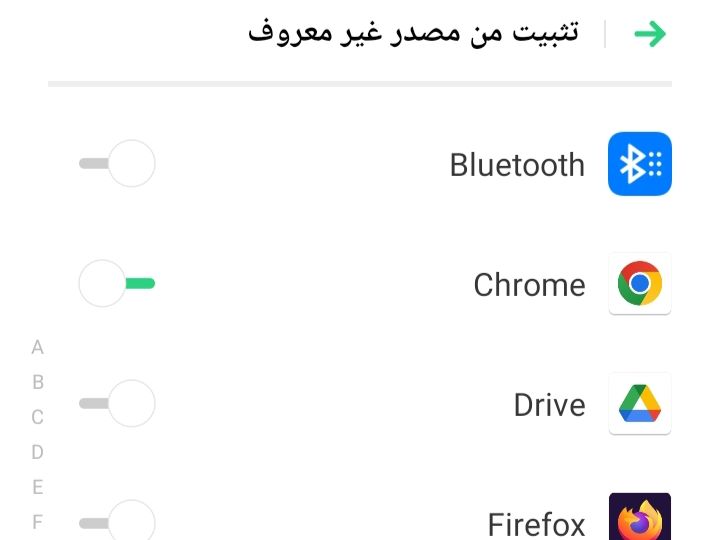
For newer Android phones from Android 7 onwards, go to “Settings” > “Security” > “Install unknown apps.”
Afterward, enable the switch next to the app through which you’re trying to install the application, for example, Chrome. Then, open the Chrome browser, go to the download history, click on the APK file, and try installing it.
Note: If you can’t find that option, you can search for it using the search bar in the settings app. Click on the magnifying glass icon at the top of the screen, then type “Unknown” or “Install.”
Alternatively, instead of clicking on the APK file, from the alert that appears, choose “Settings,” then enable the switch next to “Allow from this source.”
After performing this action, you can go back and continue with the app installation. If you later install APK files from the same source, you won’t need to repeat this process.
If that doesn’t resolve the issue of installing apps from outside the OPPO store, proceed to the next step.
2. Restarting the phone
Often, a simple restart can fix many issues, so try restarting your device once.
3. Verifying the Play Protect feature
In Android phones, the “Play Protect” feature is available, working by default to scan your device for malware and remove it. It might prevent you from installing an app if it’s deemed harmful.
If you still want to install the app, try temporarily disabling it by going to “Play Store” > click on your profile picture > “Play Protect” > tap the gear icon at the top of the screen.
Afterward, disable the “Scan apps with Play Protect” option, then try installing the app again.
Warning: While this action may help resolve the issue of installing apps from outside the OPPO store, it may expose your phone to potential malware.
4. Clearing the full phone memory
Insufficient space might be the issue. You can resolve this by deleting old apps or files you no longer need, or by transferring them to an external storage device.
5. Clearing the cache and data for the Google Play Store and Google Play Services app.
Sometimes, cache and data interference can affect app installations, including installations from unknown sources. If that’s the case, clearing the cache and data might resolve the issue of installing apps from outside the OPPO store.
Go to “Settings” > “App Management” > “System Processes” > “Play Store” > “Storage Usage” > “Clear Cache” > “Clear Data.” Then, repeat the same steps for “Google Play Services.” After that, restart your phone.
6. Re-downloading the APK file
If the APK file is corrupt or has been deleted by phone cleaning apps, you might face installation issues. Preventing such apps from interfering can help. Try redownloading the file to resolve this issue, or consider downloading it from a different source.
If the app is available on the Play Store, try downloading it from there. Alternatively, uninstall it and reinstall it from the Play Store. Check for any available updates and install them. If the app is not on the Play Store, search for an alternative app that serves the same purpose.
7. Solving the issue of not installing apps from outside the OPPO app store by updating the phone
If your phone is unable to install external apps, it might require a newer version of Android that your device doesn’t support. In such a case, the solution is to update the system. Go to “Settings” > “System Update,” then download and install any available updates.
If the issue persists, try a factory reset by going to “Settings” > “Additional Settings” > “Backup & Reset” > “Factory data reset” > “Erase downloaded apps and data.” Keep in mind that a factory reset will erase your downloaded apps and data, so ensure you have a backup if needed.
Other ways to install APK files
If the APK file can only be downloaded using a computer browser or your phone is unable to download it for some reason, you can check the options in your Android browser to enable “Request Desktop Site.” If that doesn’t work, consider downloading the APK file using a computer and transferring it to your phone.
Afterward, transfer the APK file to your phone using a USB cable or wirelessly via Bluetooth. You’ll then need to grant the “File Manager” app permission to install from unknown sources to proceed with the installation.
You can also install the file using Google Drive, Dropbox, and other cloud services. If you find that your phone’s browser is not suitable for downloading APK files, this allows you to download numerous apps using your computer and then install them on your phone in one go.
It’s recommended to create a dedicated folder for APK files in Dropbox, Google Drive, or any other storage service. Upload the APK files to that folder. Then, on your phone, open the app for the cloud service you’re using and access that folder.
External sources of applications
One of the well-known websites where you can download applications instead of the Play Store is APKMirror. It is considered a good site to find legal APK files for old versions of Play Store apps, as well as free applications, and so on. As for other alternative stores, including but not limited to Aptoide, Tap Tap, F-Droid, APKPure, and more.
To uninstall an app installed via APK, you can follow the same steps as regular apps. Long-press the app icon on the home screen and select “Uninstall.” Alternatively, go to “Settings” > “App Management,” choose the app you want to remove, and press “Uninstall.”
Why do some people want to install apps from outside the store?
Many people may want to install external apps either because they are not available on the Google Play Store, not accessible in certain countries, or for the purpose of trying out beta applications.
Or due to the delayed arrival of app updates for some individuals, preventing them from experiencing new features, or because the Play Store does not function on their phones, as is the case with Huawei devices, and so on.
As for the reason why some apps are not present in the store, it could be because they might be harmful or not functioning properly, and so on.
Protection from malicious application sources
After resolving the issue of installing apps from outside the OPPO store, let’s discuss tips for protecting against malware. Apps from outside the official store can be harmful, especially illegally distributed paid apps offered for free.
Enabling installations from unknown sources temporarily and disabling it after installing the app is a good practice to prevent installed apps from downloading additional harmful files without your knowledge.
Make sure to download apps from trusted sources, official websites, or reputable companies. If you frequently install apps from outside the store, consider using an antivirus app to scan APK files before installation for added security.
Buying a new phone
If the problem recurs even after visiting the service center, it may be time to buy a new phone. Discover the latest phones of this year at discounted prices.
Note:“I may earn a commission if you visit or make a purchase through the links provided.”
sources
- Antonelli, Darlene. “6 Simple Steps to Allow Apps from Unknown Sources on Android.” wikiHow. 29 May 2023. http://www.wikihow.com/Allow-Apps-from-Unknown-Sources-on-Android. Accessed 4 July 2023.
- Mushtaq, Mehvish. “How to Install Apps from Unknown Sources on Android .” Maketecheasier. 5 Apr. 2022. http://www.maketecheasier.com/install-apps-from-unknown-sources-android/. Accessed 4 July 2023.
- the photo by Zewail Ebrahim on Zewail Tech
 زويل تيك

أخبرنا برأيك