
Many people want to know the solution to the problem of not being able to install apps from outside the realme app store, and that’s what we will discuss.
Causes of App Installation Issues
One of the most common reasons for this issue is the lack of compatibility between your phone or its components, such as the processor, RAM, Android version, or screen, with the specifications required by the apps.
Alternatively, the issue may not be with your phone; there could be problems within the app preventing its installation or the APK file you downloaded might be corrupted. If you obtained your mobile device from your school or workplace, you may not be able to install apps without their permission.
Note: Before downloading any app, read the specifications of the supported mobile devices to avoid facing such issues in the future.
How to solve the problem of not installing applications from outside the realme store
1. Enable the “Install Apps from Unknown Sources” feature
By default, the Android system prevents users from installing any apps downloaded from sources other than the Play Store. This is because many of these apps can be harmful, unlike store apps that undergo periodic checks to ensure their safety.
Indeed, there is a feature called “Install from Unknown Sources” on the phone, which allows users to disable this restriction and install apps from sources outside the official store.
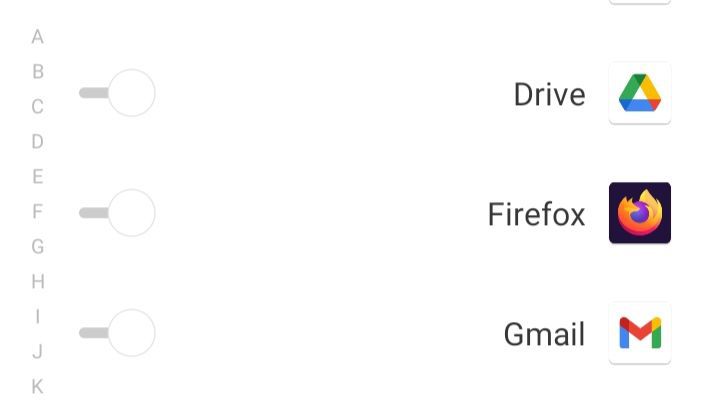
You can activate it by opening the “Settings” app > “Biometrics and Security” > “Security” > “Install Unknown Apps,” then toggle the switch next to the app through which you want to install an APK file.
Exactly, if you downloaded the app through Chrome, enable the toggle switch for Chrome. If it’s from another app, enable the switch for that specific app. Then, go back to your browser downloads and try installing the app again.
Correct, afterward, your phone won’t prevent you from installing apps from outside the store through the browser.
Note: If you find it challenging to follow the previous steps due to variations in settings locations and names on your phone, you can click on the magnifying glass icon at the top of the settings app, then type “Unknown” or “Install” to quickly navigate to the last step.
Note: Instead, you can click on the APK file for the app. From the window that appears, press the “Settings” option, then allow installation of the app via the browser as in the previous method. Feel free to try the following approaches as well.
2. Restart your phone
Temporary software glitches can sometimes cause this issue, but usually, the solution to the problem of not installing apps from outside the realme store is simply to restart your phone. Do this by long-pressing the power button and selecting restart.
3. Temporarily disable Play Protect feature
This feature is available within the Google Play Store app, and its importance lies in regularly scanning your phone’s apps to detect and remove malware. It also prevents the installation of harmful apps even if the user enables installation from unknown sources.
If you attempt to install an app flagged as harmful by this feature, your phone won’t allow it. However, you can override this by going to “Play Store” > clicking on your “Profile Picture” > “Play Protect” > press the “Gear icon” at the top of the screen.
If you are 100% certain about doing so, disable the option “Scan apps with Play Protect” and “Improve harmful app detection.” Then, try installing the app.
Note: Disabling these options may expose your phone to malware risks.
4. Clearing Full Phone Memory
When the available space on your phone is less than 10% of the total space, it can lead to issues such as the caller’s number not appearing.
Exactly, make sure to free up space on your phone by deleting infrequently used apps and files, or transfer them to another device, preferably your computer.
5. Clear Cache and Data for Google Services and Play Store App
You can try resolving the issue of not installing apps from outside the Realme store by clearing the cache and data for both the Google Play services and the app store.
Go to “Settings” > “Apps” > “App Management” > Select “Google Play services” > “Storage Usage” > “Clear Cache” > “Manage Space” > “Clear All Data.” Repeat the same process for the “Google Play Store” app.
6. Re-download the APK file for the application.
As mentioned earlier, the issue could be a corrupted APK file or it might have been deleted by a cleaning application on your phone. You can resolve this by re-downloading the file or getting it from another source.
Try searching for the app you want to install on the Play Store. If it’s available, attempt to download it or check for any available updates for the app.
If the app is not available on the Play Store, you can download another app that performs similar tasks to the one you’re looking for.
7. Resolve the issue of not installing apps from outside the realme store through a phone update
Many apps require specific phone specifications to function. If your phone doesn’t meet those requirements, it might be challenging to install and run the app. The application may need a more recent version of the Android operating system, which might not be available on your device.
You can solve this by updating your phone’s operating system. Go to “Settings” > “Software Update,” then check for any available updates and download/install them.
8.”Factory Reset”
Resetting your phone is the last resort if the previous methods didn’t solve the issue of installing apps from outside the Realme store. Keep in mind that this will erase all content on your phone, such as photos and contacts, so you may want to back up your data before proceeding.
Go to “Settings” > “System” > “Backup & Reset” > “Factory Data Reset” > “Erase All Data.” Alternatively, you can type “Reset” in the search box within the Settings app.
Different ways to download applications
If you’re having trouble downloading an app through your phone’s browser, try downloading it on your computer’s browser and then transfer it to your phone via USB. Alternatively, you can upload it to a cloud service like Google Drive or Dropbox, then open the corresponding app on your phone, log in to your account, and download the APK file.
The most popular application stores
Certainly, you can use alternative app stores like APKMirror, F-Droid, APKPure, Tap Tap, and Aptoide to download applications. Each of these platforms offers a variety of apps that you can explore and install on your device.
How to remove apps downloaded from outside the Store
You can delete those apps just like you do with other apps downloaded from the store. Long-press on the app, click on “App Info” or the letter ‘i’, and then choose “Uninstall.”
Why do many people want to install applications from third-party sources?
Indeed, the unavailability of those apps on the store could be due to the developers not making them accessible in all countries. This limitation might result in users facing difficulty in finding and installing the apps through the standard store.
Absolutely, other reasons for downloading apps from alternative sources include a desire to use beta or trial versions, wanting to access new features earlier, or encountering limitations like the absence of the store on the phone. Users may seek these alternative methods to have more control over their app choices and experiences.
Why are some apps not available on the play store?
Exactly, Google takes measures to remove malicious apps to protect users’ phones from potential harm. Additionally, apps with issues that could affect their proper functionality may also be removed to maintain a better user experience and overall security. Regular monitoring and app reviews are part of these efforts.
Protect your mobile from malware
If you frequently install apps from outside the store, consider installing an antivirus program to scan those apps and protect your phone. Also, remember to disable the “Install from Unknown Sources” option after installing the desired applications to enhance security.
Avoid downloading free versions of paid apps. Download applications from trusted app stores, official websites, or reputable companies. Refrain from installing apps that request excessive permissions, and opt for those requiring minimal permissions for increased security.
Buying a new phone
If the problem recurs even after visiting the service center, it may be time to buy a new phone. Discover the latest phones of this year at discounted prices.
Note:“I may earn a commission if you visit or make a purchase through the links provided.”
Sources
- Antonelli, Darlene. “6 Simple Steps to Allow Apps from Unknown Sources on Android.” wikiHow. 29 May 2023. http://www.wikihow.com/Allow-Apps-from-Unknown-Sources-on-Android. Accessed 4 July 2023.
- Mushtaq, Mehvish. “How to Install Apps from Unknown Sources on Android .” Maketecheasier. 5 Apr. 2022. http://www.maketecheasier.com/install-apps-from-unknown-sources-android/. Accessed 4 July 2023.
- the photo by Zewail Ebrahim on Zewail Tech
 زويل تيك

أخبرنا برأيك